Table of contents
- What Bitget Cornix integration means today
- Connect Bitget Cornix integration through Quick Connect
- Manual API permissions and credential handling
- Link Telegram signals to the intended Bitget account
- Set allocation before activating signal automation
- Test Bitget Cornix integration and isolate failures
- Related articles
Bitget Cornix integration connects an eligible exchange account to automated trading, including following supported Telegram signals (supported exchange connections). Check compatibility with your intended market before connecting an account; connecting an account and choosing the instructions that drive its trades are separate steps.
Eligibility comes first, and Bitget does not serve every country. Its terms prohibit users in the United States (including specified US territories), and, since MiCA's transition period ended on July 1, 2026, Bitget is closed to customers in Austria, France and Germany. Bitget has applied for a MiCA licence in Austria but has not been authorised, so do not assume it is available to every EU or EEA trader: check the current terms for your country, and do not try to circumvent restrictions. The live connection steps below apply only to eligible users outside prohibited jurisdictions (exchange eligibility terms).
What Bitget Cornix integration means today
Cornix announced the partnership on April 17, 2024 (original partnership announcement). The practical benefit remains an exchange connection for trading automation, rather than a signal recommendation or a promise of improved returns. The announcement is historical context, not a newly launched offer.
Cornix Signals Bot detects new instructions from a supported Telegram or Discord group, places matching exchange orders, and synchronizes supported target changes, stop-loss edits, and cancellations (Signals Bot overview). That continuing management matters when a provider changes an instruction after publication.
Treat the workflow as separate decisions: which account receives orders, which channel supplies instructions, and which allocation you authorize. Write those choices down before activation. The automated trading platform provides a broader introduction to the available bot types if you have not yet chosen your instruction source.
Connect Bitget Cornix integration through Quick Connect
Use the account connection guide to choose between Quick Connect and manual credentials. An API connection gives software authorized access to an exchange account; IP restrictions constrain where those credentials can be used. This route avoids manually transferring IP addresses during authorization.
Follow the Bitget Quick Connect instructions for this sequence:
- Open Accounts & Groups in the web dashboard and select Create Account.
- Select Bitget and the Quick Connect option.
- Select Connect To Bitget, then Next as prompted.
- Complete the security verification.
- Review the resulting Spot and Futures (USDT) accounts before assigning a bot.
Cornix supports Bitget spot, futures, and inverse markets overall. Quick Connect creates the spot and USDT futures account types; select the destination that matches your planned strategy rather than treating the two as interchangeable. The overall market list is broader than these Quick Connect destinations; confirm the connection route for your intended market and account type before authorizing it.
After connection, record the account name and intended market beside your strategy notes. A successful authorization establishes the connection. Your next task is to decide what may trade through it, with which allocation, and under whose instructions.
Manual API permissions and credential handling
For manual setup, Cornix supports connecting Bitget through an access API key, secret key, and passphrase (manual API setup guide). In the exchange account menu, open API Keys, select + Create API Key, choose System-generated API key, and assign a name and passphrase. The documented permissions are Read-write, Futures: Orders and Holdings, and Spot: Trade.
Save the passphrase for the connection and complete the required security verification before transferring credentials into the account connection. For manual IP restrictions, use the whitelist addresses supplied for your connection. Keep the API secret and passphrase out of channel posts, shared notes, and troubleshooting screenshots. Prefer Quick Connect when you want automatic permission and IP configuration rather than manually managing those details.
Do not confuse a channel subscription with authorization to access your exchange. A provider supplies trading instructions; your account connection supplies the execution destination. Keep those responsibilities separate when onboarding or asking an administrator for help.
Link Telegram signals to the intended Bitget account
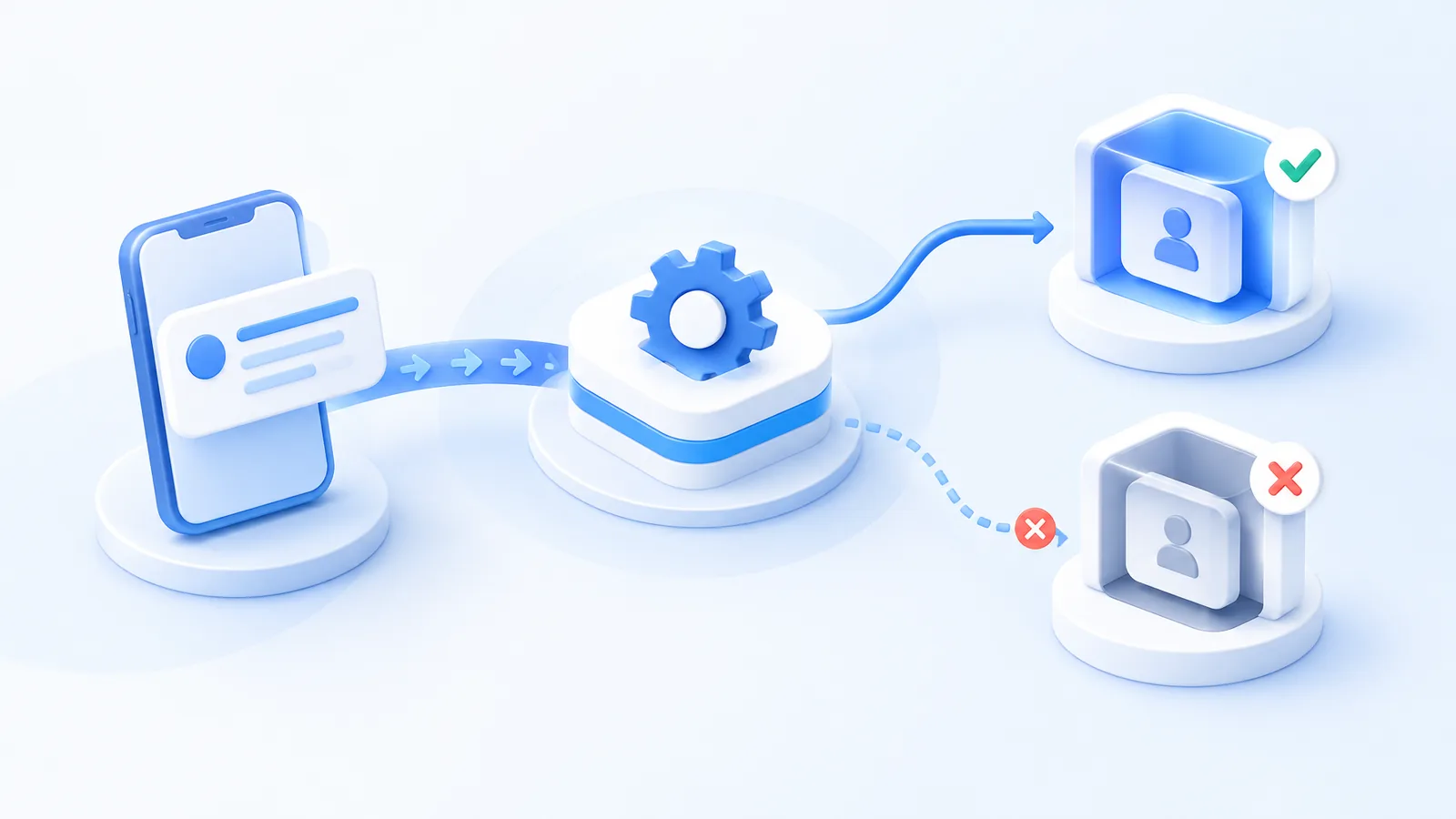
Cornix connects an existing user's Telegram identity through Settings > Account & Security > External Accounts (Telegram account connection guide). Select Telegram, obtain the UUID through the connection flow, and complete the security-code validation. This lets the platform identify your channel memberships.
Choose the provider before activating automatic following. Browse the supported signal groups for integration options, then review consecutive instructions, revisions, cancellations, and losing outcomes. Inclusion is not an endorsement. Prefer a channel whose market, timing, and trade-management instructions you can explain before delegating execution.
Administrators can explore the signal integration features when planning a channel that publishes actionable trading instructions. As a follower, join the intended integrated channel rather than assuming every Telegram discussion group supplies executable instructions.
To connect a joined channel, open My Groups and locate it. If it is absent, use Missing a Group and follow the setup prompts. Channel membership identifies the instruction source; the exchange connection identifies the execution destination (channel connection instructions).
Set allocation before activating signal automation
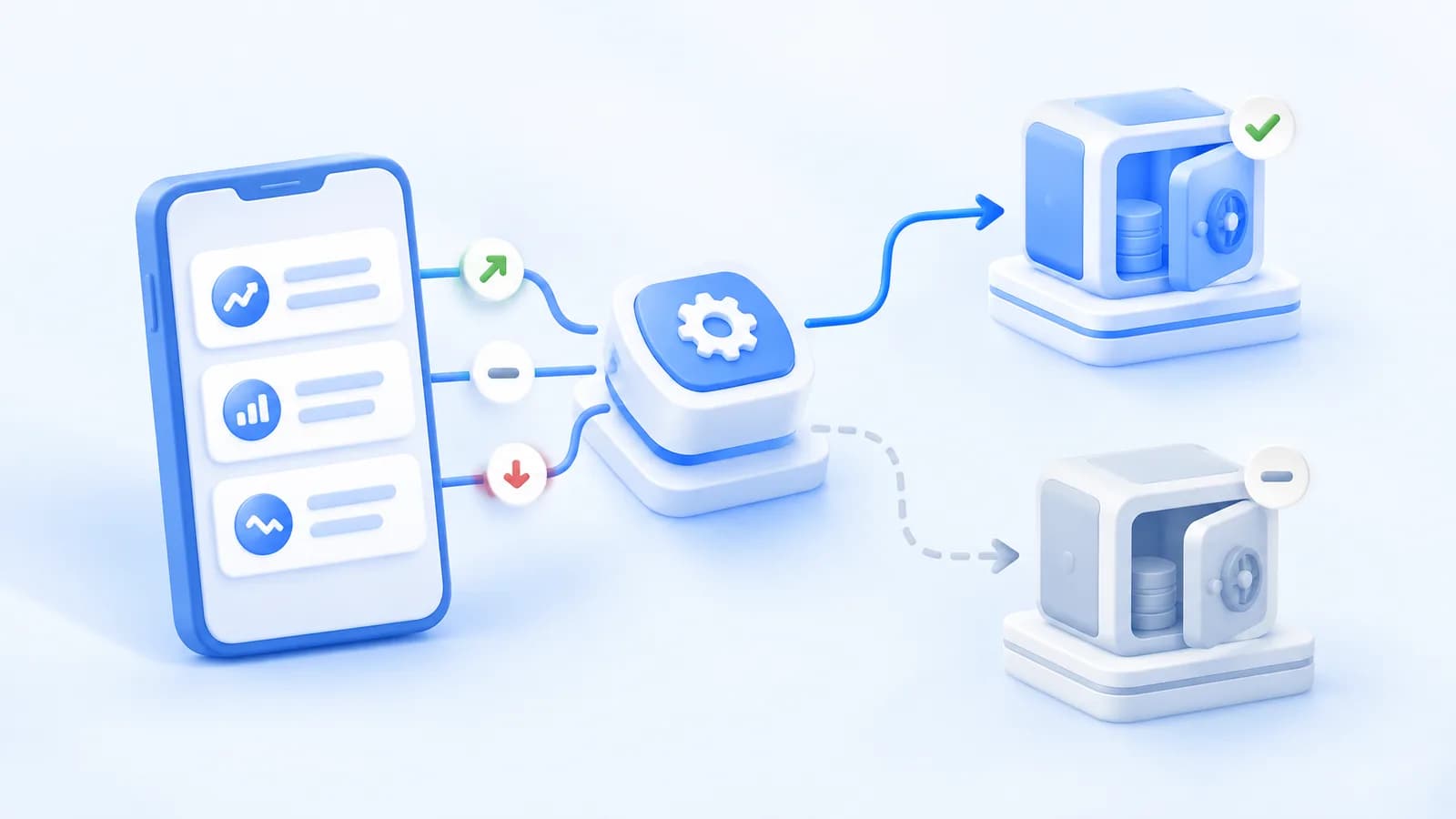
Separate bot creation from activation while reviewing your configuration (Signals Bot setup guide). Open Signals Bots > Create Bot, choose the Signals Group and Exchange Account, then set Amount Per Trade. Available sizing methods include a fixed USD/BTC amount, a percentage of available funds, or a Risk percentage.
Use Show Configuration to review entries, take-profits, and stop-loss strategies. Select Create to save an inactive bot while reviewing the configuration, rather than Create & Activate. Advanced settings allow personal configuration; switching back to Basic Settings discards advanced-section changes.
Write a combined allocation ceiling before enabling simultaneous signals. A per-trade amount describes one instruction, not the total funds several open trades can commit. Keep that allocation calculation distinct from the potential loss at a stop, especially when working with futures.
Use the example below only to understand spot allocation. Choose your own practice balance and limits; its amounts are not a suggested investment or a futures margin calculation.
For a hypothetical $1,000 spot practice balance, allocating $40 to each of 3 simultaneous trades commits $40 × 3 = $120, leaving $1,000 - $120 = $880 before fees. The result measures committed capital, not the loss at a stop.
Test Bitget Cornix integration and isolate failures
For a simulated rehearsal before live execution, write expected outcomes for an opening, target update, cancellation, and closing event. Record the source message, selected account, allocation, observed action, and remaining position. Change one setting between rehearsals so you can identify what caused a difference.
If a connection fails, separate authorization from signal delivery. Review the credentials, passphrase, and permissions used in manual setup. For a missing Create button on an account managed through Secure Invite, request a new invitation from the asset manager rather than attempting to recreate the connection yourself.
For the error You are not a member of this group, look for follow buttons below recent channel signals. If present, select Set auto trading to refresh membership recognition. If absent, the channel needs integration before automatic following can work.
Related articles
If your channel instructions originate in chart alerts, read the TradingView signal routing guide to separate publishing from exchange execution. For broader allocation planning, the portfolio and automated bots guide explores how bots fit into portfolio decisions. Browse all trading articles for further workflow guidance.
Keep your initial rehearsal focused on one understood source and one clearly identified destination. To explore simulated trading before committing funds, review the Cornix Demo Account.
Frequently Asked Questions
Does Bitget Cornix integration require Telegram?
Cornix supports DCA, Grid, and TradingView bots alongside signal automation. Choose Telegram when a supported channel supplies the signals you want to follow.
Does a paid signal channel collect its subscription through Cornix?
Paid channel subscriptions are handled directly with the channel administrator. Arrange membership with that administrator separately from configuring your exchange connection.