
Table of contents
- 1. Set Up the Right Chart Before Writing a Rule
- 2. Test Ideas With Volume Profile and Bar Replay
- 3. Use Community Ideas as a Second Opinion
- 4. Set Alerts Around the Decisions You Need to Make
- 5. Trade From the Chart or Through an Alert-Driven Bot
- 6. Rehearse in Paper Trading and a Cornix Demo Account
A useful TradingView crypto trading guide starts with a repeatable process: select the correct market, write a chart-based rule, configure an alert, and decide whether that alert calls for review or execution. TradingView supports symbol research and configurable alerts, so begin with one pair and one condition you can explain clearly (symbol search guide, alert configuration guide).
Keep analysis, notification, and trading separate. A chart helps you inspect the market; an alert reports a condition; a webhook sends that event to an external application. Choose manual review when the setup still needs judgment, and automate only a rule whose intended action is already explicit (webhook configuration guide).
1. Set Up the Right Chart Before Writing a Rule
Cornix connects TradingView alerts to automated exchange trades through TradingView Bots, with configurable entry, stop-loss, and take-profit levels. That connection becomes useful after your chart rule and intended trade are defined (TradingView Bot overview).
Start in Supercharts with Symbol Search. Search for your pair, filter for cryptocurrencies, and inspect the description and data source before opening the chart. The search results identify both the instrument and its source, which helps prevent choosing a similarly named market by mistake.
For your first study, use a daily chart for context and a one-hour chart for the entry rule. These are suggested research intervals, not preferred settings for every strategy. Mark the range you are studying, the level that would invalidate your idea, and the condition that would justify another look. Keep a written note beside the chart so a later price move cannot quietly change your original reasoning.
2. Test Ideas With Volume Profile and Bar Replay
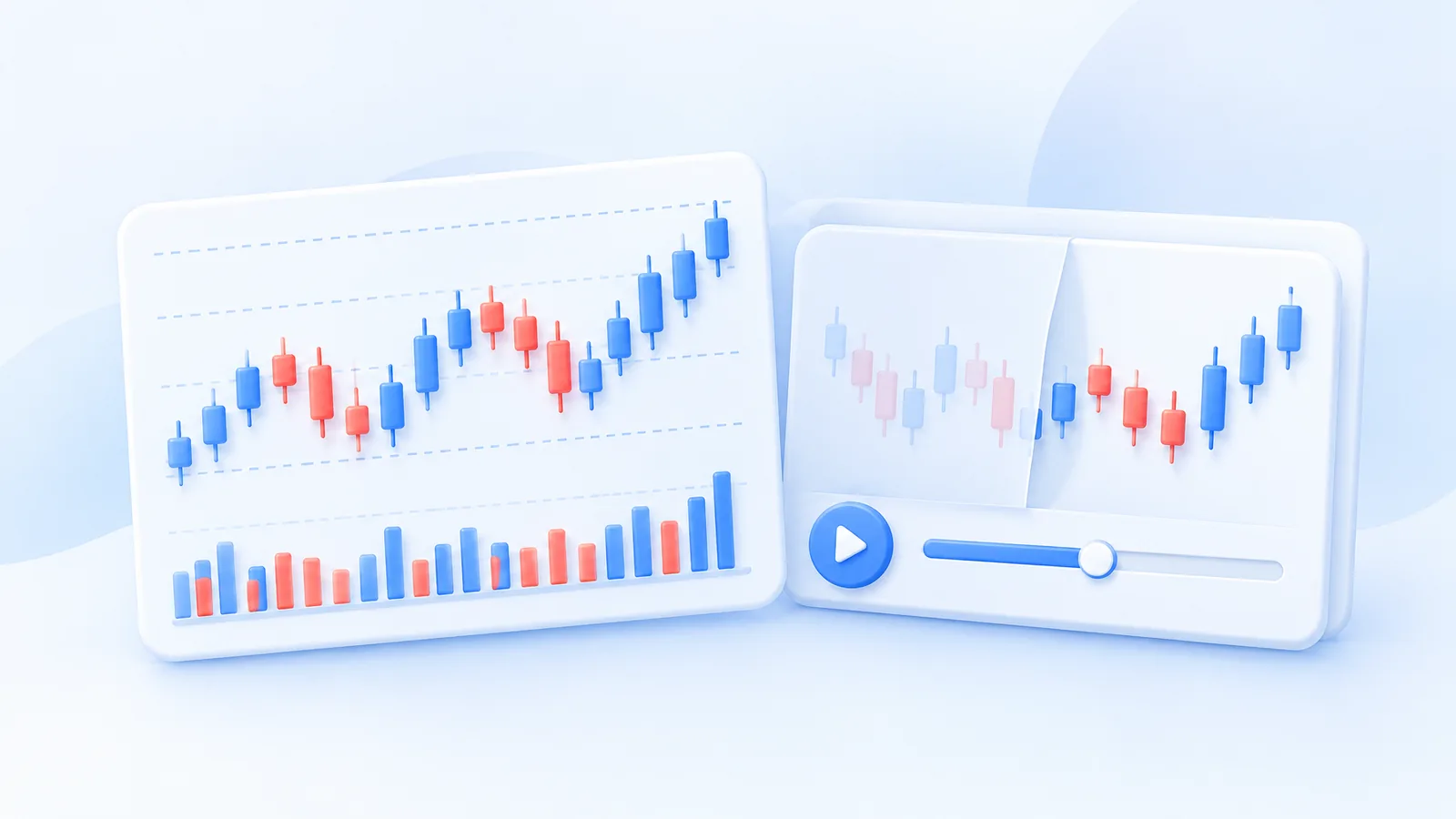
Give each tool a specific question. Use drawn levels to state your hypothesis, then historical review to examine it. TradingView Volume Profile displays trading activity by price over a selected period; its point of control identifies the price level with the highest traded volume. It provides historical context rather than a prediction of the next move (Volume Profile concepts).
For example, investigate whether a proposed breakout begins inside or outside an area of concentrated historical activity. Record the period used for the profile before comparing examples. Changing the period halfway through a test changes the question, even if the resulting chart looks more convincing.
Use Bar Replay to hide the later outcome: click Bar Replay, select a starting date, then advance the chart. Volume Profile and replay serve different purposes, and TradingView's Fixed Range Volume Profile tool does not work during replay. For historical order practice, use Replay Trading, which is separate from Paper Trading; set starting capital and commission before the session (Bar Replay guide, Replay Trading guide).
Record your entry and invalidation before revealing subsequent bars. The useful result is whether the same rule produced consistent decisions, including skipped trades, rather than whether one carefully selected example won.
3. Use Community Ideas as a Second Opinion
TradingView's community includes published trading ideas and educational material. Use these to find alternate interpretations of the same chart, not to outsource the decision to the most persuasive author.
Compare an idea with your own written setup. Does it use the same pair, market, timeframe, and observation date? Where would its thesis fail? What price behavior would distinguish its interpretation from yours? An idea without a clear invalidation point is harder to test than one that specifies what would prove it wrong.
Save the reasoning you want to investigate and record your conclusion before looking at the outcome. Keep outside commentary in a separate note from your trading rule; otherwise, a new opinion can become an unrecorded strategy change.
4. Set Alerts Around the Decisions You Need to Make
Configure alerts around decisions you actually need to make. For a hypothetical price notification, select the intended symbol, choose Crossing up, enter $60,000, set Only once, and give the alert a recognizable name. For a technical condition evaluated at a candle close, choose Once per bar close when that trigger is available. Confirm the interval, expiration, and message before saving.
Pine Script alerts preserve a snapshot of the script, inputs, symbol, and timeframe at creation. Later chart edits do not update that running alert. Delete and recreate the alert after a material change so an old configuration cannot keep generating instructions for a revised strategy (Pine Script alert documentation).
For webhook delivery, enable two-factor authentication and keep login credentials out of the message. TradingView sends an HTTP POST to the configured destination, but delivery can fail; inspect Webhook status in the alert log when investigating a missing event.
5. Trade From the Chart or Through an Alert-Driven Bot
Before attempting chart-based execution, confirm that the connected trading provider supports the selected instrument. TradingView allows Symbol Search to filter for a broker's tradable symbols. Chart availability alone should not be treated as trading access (tradable symbol guidance).
For manual decisions, write the entry, quantity, and exit plan before submitting an order. Decide whether price control or prompt execution matters more, and inspect the order ticket rather than assuming a line drawn on the chart represents an active order.
For alert-driven execution, Cornix TradingView Bots use the connected alert to initiate trades with configured entry and exit levels. This route fits a rule that should act without another discretionary decision. Use the TradingView webhook workflow guide to examine the alert-to-bot connection before configuring execution.
Treat the size calculation as a planning estimate. Fees, execution prices, and the actual order settings still belong in your review before using live capital.
For a hypothetical $2,000 practice account, a 1% planned loss budget is $2,000 × 0.01 = $20. With a BTC entry at $60,000 and a stop at $59,000, the distance is $1,000 per BTC, so $20 ÷ $1,000 = 0.02 BTC. That position has an entry value of 0.02 × $60,000 = $1,200 before fees; the calculation illustrates size planning, not a recommended trade.
6. Rehearse in Paper Trading and a Cornix Demo Account
Separate chart practice from automation testing. Use the TradingView paper trading guide to rehearse a written strategy, order placement, and review habits before testing its alert-driven version.
Cornix provides a simulated Demo Account with Signals, DCA, Grid, and TradingView bots without requiring an exchange API connection. Activate Demo Trading in the dashboard, create a demo account, and configure the bot there. Cornix demo TradingView Bots require the designated demo webhook URL rather than the live endpoint (Demo Account guide).
Review one change at a time. Keep a record of the rule version, alert creation date, account destination, intended order, and observed result. If an event is missing, investigate delivery before changing the strategy. If the action is wrong, compare bot configuration with the written instruction. Simulation is a rehearsal, not proof of live profitability.
When you have one explicit rule ready for an automation rehearsal, begin on the Cornix registration page.
Frequently Asked Questions
Do I need Pine Script to create a TradingView alert?
No. TradingView supports price alerts and technical alerts for indicators and drawings as well as scripts. Pine Script becomes useful when your trigger needs custom coded logic.
Can I place historical Paper Trading orders during Bar Replay?
Standard Paper Trading orders still use real-time data during Bar Replay. Use the separate Replay Trading mode for historical order practice, and export its results before leaving the session.
Can I connect exchange testnet API keys to Cornix for practice?
Cornix does not support external exchange demo accounts or testnets through API connections. Cornix's built-in simulated Demo Accounts provide the practice environment without exchange API keys.