Table of contents
- 1. Choose the signal-publishing route
- 2. Prepare your TradingView Telegram integration destination
- 3. Connect TradingView Telegram integration fields precisely
- 4. Validate the published signal before following it
- 5. Test follower behavior separately from publishing
- 6. Trace missing alerts and recover without replaying blindly
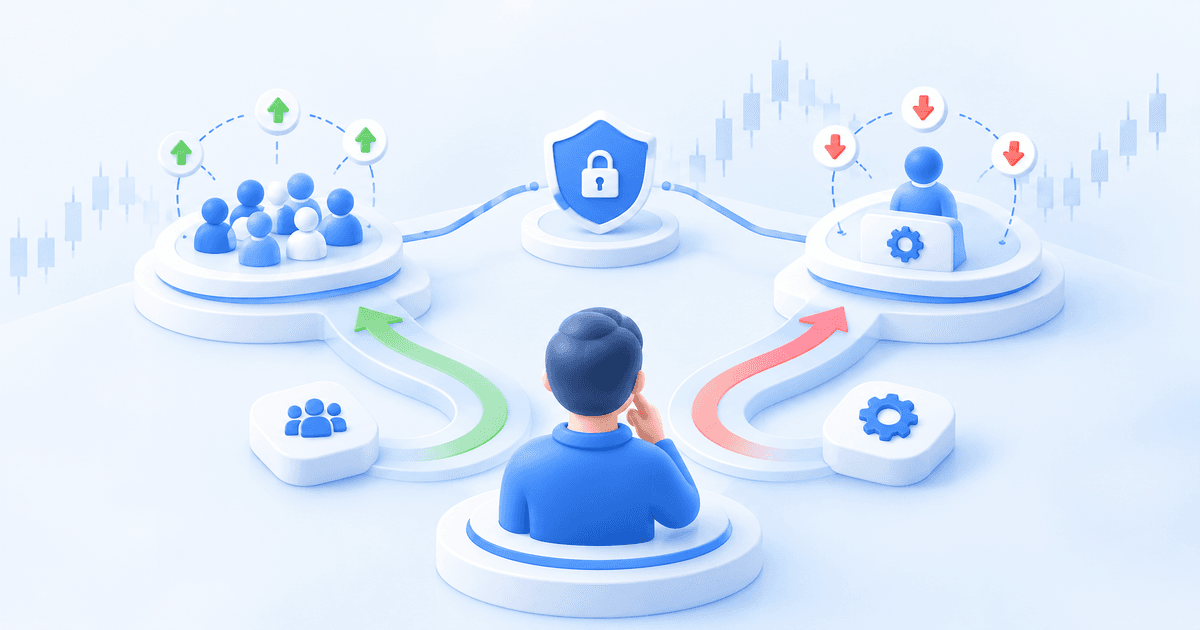
TradingView has no native Telegram posting. Alerts reach Telegram through a webhook: either Cornix's TradingView-to-Signals bot, which turns each alert into a structured signal in your Telegram channel, or a custom relay you build and host yourself. This guide covers the channel side: routing each alert to the right Telegram channel, testing opening and closing alerts before followers connect, and troubleshooting alerts that go missing. If you want account-level trade execution from TradingView alerts instead, read our TradingView webhook trading bots guide; this article is about publishing signals to a channel. A message appearing in Telegram is a publishing result, not proof of an exchange trade.
1. Choose the signal-publishing route
There are two routes from a TradingView alert to a Telegram channel. The first uses Cornix TradingView bots: each alert creates or closes a structured signal in your channel, which followers' Signals Bots can act on. Use it when an alert should create a shared instruction rather than act on one account. The second is a custom relay, your own server that receives the webhook and calls Telegram's API. It suits plain notifications, but you own the message mapping, hosting, logging and recovery.
2. Prepare your TradingView Telegram integration destination
Use a dedicated test channel without live followers. Follow the admin onboarding workflow to install and activate the channel integration. Complete that integration before connecting the publishing alert, then record the exact destination selected in the bot. Avoid similarly named test and production channels.
For a custom notification relay, Telegram’s sendMessage method requires a destination chat_id and message text; a channel username can serve as the destination identifier. Channel posting uses the bot administrator permission can_post_messages. A successful test to a personal chat does not test channel posting permissions.
Enable TradingView two-factor authentication before using webhooks. Its alert message becomes the HTTP POST request body, and the receiver must respond within three seconds (webhook configuration guide). For a self-hosted relay, design receipt handling to finish promptly rather than waiting for lengthy processing.
Decide whether you want a notification or an actionable signal. A custom relay needs its own message mapping, hosting, logging, and recovery process. Prefer the structured publishing route when the objective is channel signal generation; use a custom relay when you intend to maintain notification delivery yourself.
3. Connect TradingView Telegram integration fields precisely
Use the connection fields in the signal-publishing setup guide: put the Webhook URL in TradingView’s alert actions and the appropriate Create or Close Signal value in the Message box. Then create the alert and activate the publishing bot.
Follow this connection sequence:
- Create the publishing bot and select the test destination.
- Create the opening alert with the intended symbol, timeframe, and condition.
- Copy the supplied destination URL into Webhook URL.
- Copy the supplied Create Signal value into Message.
- Configure the closing alert with the corresponding Close Signal value.
- Compare both saved alerts against your strategy notes before enabling the test.
Warning: Close Signal also closes the trades of every channel member who follows that signal. Only send a closing alert when you intend to exit for all followers, and test it on a channel without live followers first.
Treat the supplied message as connection data. Do not add a greeting, commentary, or a homemade JSON wrapper. Keep your strategy notes in a separate document. Compare the saved value with the original after pasting.
For strategy alerts, select the intended event source: alert() calls, strategy order-fill events, or both. TradingView supports these distinct trigger choices. Avoid selecting both simply to increase activity; your test should establish which event is supposed to publish a signal.
4. Validate the published signal before following it
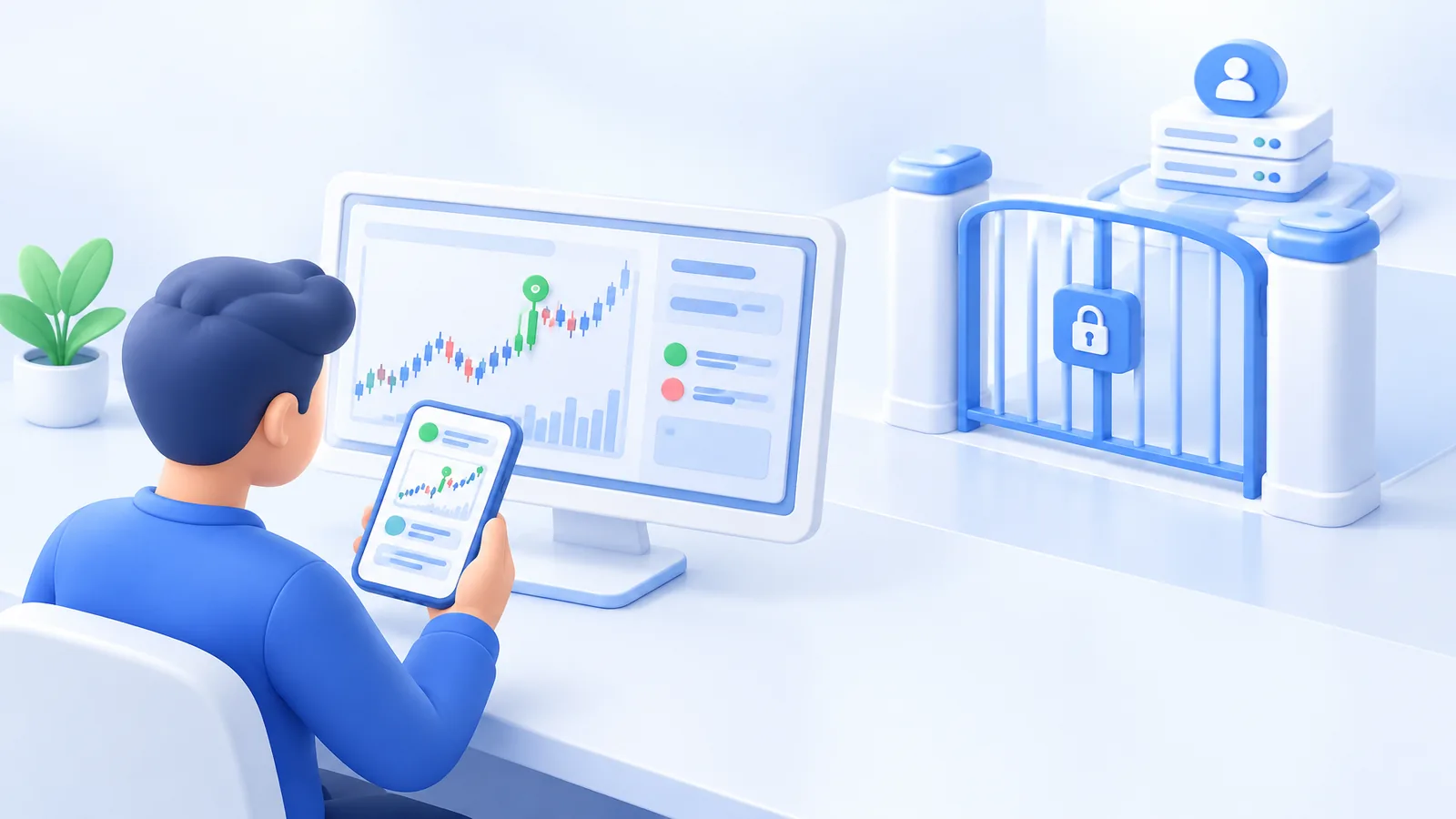
Inspect the resulting Telegram signal against a written expectation: correct destination, pair, direction, entry, targets, stop, and action. Keep the raw alert message and published signal as separate test records. The trigger payload and final channel instruction have different jobs.
For manual fallback messages, follow the signal-format instructions: use structured plain text, price-based targets, and a single stop target. Keep images separate from the actionable signal message. Apply those rules when testing manual fallback publishing, rather than assuming any readable message is executable.
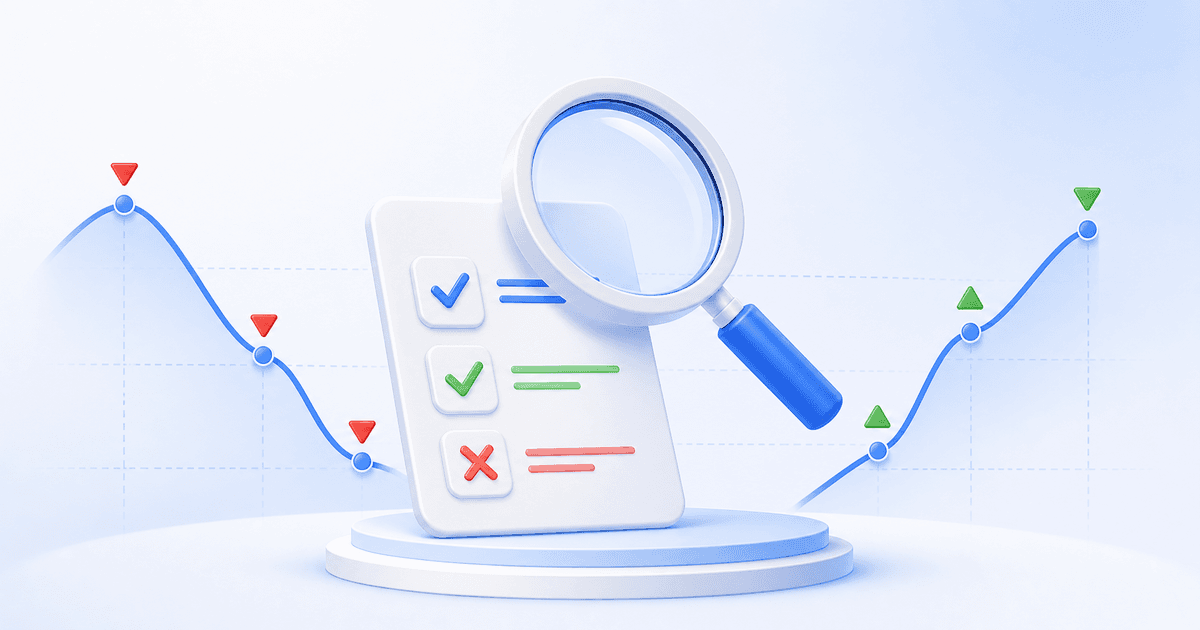
For TradingView Telegram integration, use a pass/fail checklist with concrete outcomes:
- Opening: one intended signal appears in the test destination.
- Closing: the closing event affects the intended test signal.
- Isolation: no production channel receives the test.
- Repeat: repeated triggers are observed and explained.
- Recovery: the operator can stop new triggers and identify existing signals.
Save the evidence for every failed case before changing settings. Change one field at a time and repeat the same test. Otherwise, a later success will not tell you which correction solved the problem.
5. Test follower behavior separately from publishing
Cornix supports simulated Signals Bots in its built-in Demo Account without an exchange API connection (demo testing guide). Use a demo follower to rehearse the published signal’s account-side behavior after the channel-only test passes. Keep live followers disconnected during this rehearsal.
Record the alert time, Telegram publication time, simulated action, and observed closing behavior. Test an ordinary opening, its closing event, and a repeated trigger. Write the expected result before each event, including whether a new signal should exist afterward.
Before live activation, match the account’s exact exchange entity and market. Use the supported exchange guide to match the exact exchange entity and spot or futures market to your planned connection.
6. Trace missing alerts and recover without replaying blindly
For TradingView Telegram integration troubleshooting, inspect the chain in order: alert event, webhook delivery, publishing destination, signal state, then follower activity. TradingView exposes delivery results in the alert log’s Webhook status column. Start there rather than editing every component simultaneously.
If the alert fired but nothing was published, compare the saved endpoint, opening/closing message, destination, bot activation, and channel posting permissions. If the signal exists but a follower did nothing, investigate that follower’s account and configuration rather than sending the opening trigger again.
TradingView retries qualifying HTTP 5xx responses, excluding 504, after five seconds, with up to three resends (webhook retry rules). For a custom relay, use an event identifier and duplicate detection. Before manually replaying anything, inspect existing signals and orders.
Follow the signal-management instructions: open Admin Interface > Signals, select the channel, and use the three-dot menu for Close Signal or Edit Targets. Practice that recovery path in testing. Stop new triggers first, then reconcile existing activity; stopping publication is not a substitute for managing an existing position.
For day-to-day channel operations, see the Telegram community management guide. Resume only after one supervised opening-and-closing rehearsal succeeds.
To publish your TradingView alerts as signals that followers can trade automatically, set up a TradingView bot in Cornix and connect it to your channel with the group admin solution.
Frequently Asked Questions
Do I need Pine Script for TradingView Telegram integration?
No. Price and indicator conditions can provide alerts without custom scripting. Pine Script is useful when you need coded trigger logic or customized strategy event messages.
Why does an alert still use my old strategy settings?
TradingView saves the script, inputs, symbol, and timeframe when a script alert is created. Later chart changes do not update that running alert. Delete it and create a replacement using the revised context.
Should Telegram bot tokens go inside alert messages?
Keep bot tokens in your relay’s protected server configuration, not channel posts or shared screenshots. TradingView advises against sensitive credentials in webhook bodies and recommends secure, authenticated endpoints.